Week 05 - Developing MiniKin Pt. I
Shifting Priorities
Prior to last week’s feedback session, I made a priority list on what features to implement in time for demo day on week 07. With number 1 being highest priority.
Hydrate + Stretch reminder (MiniKin will hydrate every 15 minutes and stretch every 30 minutes)
Sleep reminder (MiniKin will sleep at 11.30pm)
Weather mode changing (MiniKin will wear a raincoat when it’s raining)
Customization options (Ability to change MiniKin’s appearance by picking between Groovy, Turnip and Hopper options
When I presented this list to the class, Professor Bloom reminded me that everything on this list should contribute to my research on implicit interaction. This was valuable advice as I am reminded that the goal of MiniKin as a research artifact of my thesis is to:
Highlight the untapped potential of virtual pets as the face of implicit interaction, contributing to a new paradigm of UI design.
As I went through the list again, and decided that customization options felt more novel then a contribution to the research. This was when I decided to replace it with either of the two options:
MiniKin is able to detect a highlighted text that is not the user’s primary language
MiniKin is able to detect a downloaded image and offer to rename it to what is recognizable in the picture.
Because of the constrained timeline leading up to demo day, and that these are relatively new features, I plan to provide an animated prototype instead on that day.
I expect that the implementation of machine learning is necessary in order for these new features to work. Depending on my progress learning about it, the current benchmark I have set for myself is to code out a mockup after demo day in time for usability testing.
Mapping MiniKin’s Architecture
Like all coding projects, I started mapping out MiniKin’s architecture through sketches. It allows me to have a ‘bird’s eye view’ of the project’s structure.
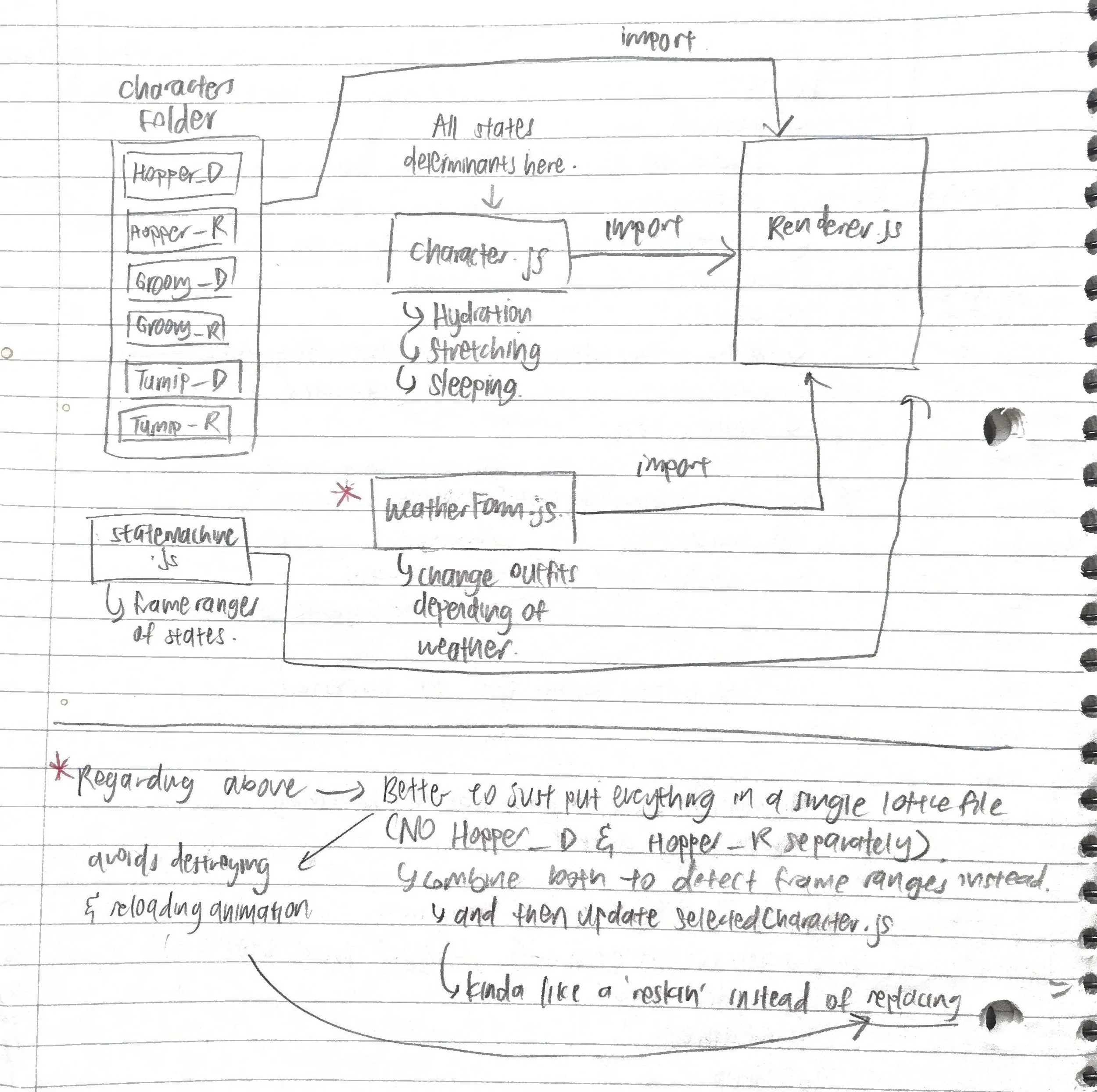
The sketch shows the structure of the MiniKin app and how each file and folder relates to each other.
To give more context to each folder and file:
Characters folder contains all of MiniKin appearances (e.g Hopper-default, Hopper-rain, Groovy-default etc.)
character.js contains everything related to MiniKin’s behavior (e.g time-based functions to execute when MiniKin is hydrating / stretching)
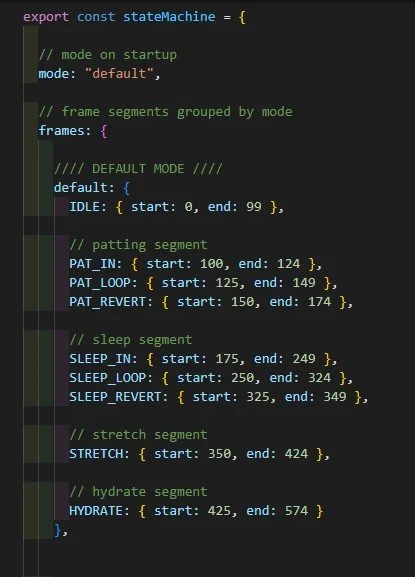
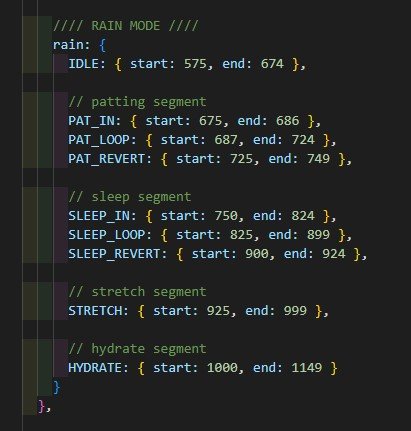
stateMachine.js contains all the frame ranges of each MiniKin’s Lottie .json file. Each frame range represents a different state / action
weatherForm.js contains handler functions to allow MiniKin to change weather mode appearances
renderer.js wires together all the above modules and starts the app in the renderer process
Later on, I realized the following errors in this map:
stateMachine.js needs to be imported into character.js so that the former’s animations can be accessed by the latter and assign them to the associated behaviors within it.
Separating MiniKin’s weather mode forms into a separate (weatherForm.js) might invite more potential complications as it would require me to destroy and re-initialize MiniKin animations every time MiniKin changes its mode.
Thus, to fix this, I decided to:
Make a mental note to import stateMachine.js into the character.js file when developing MiniKin.
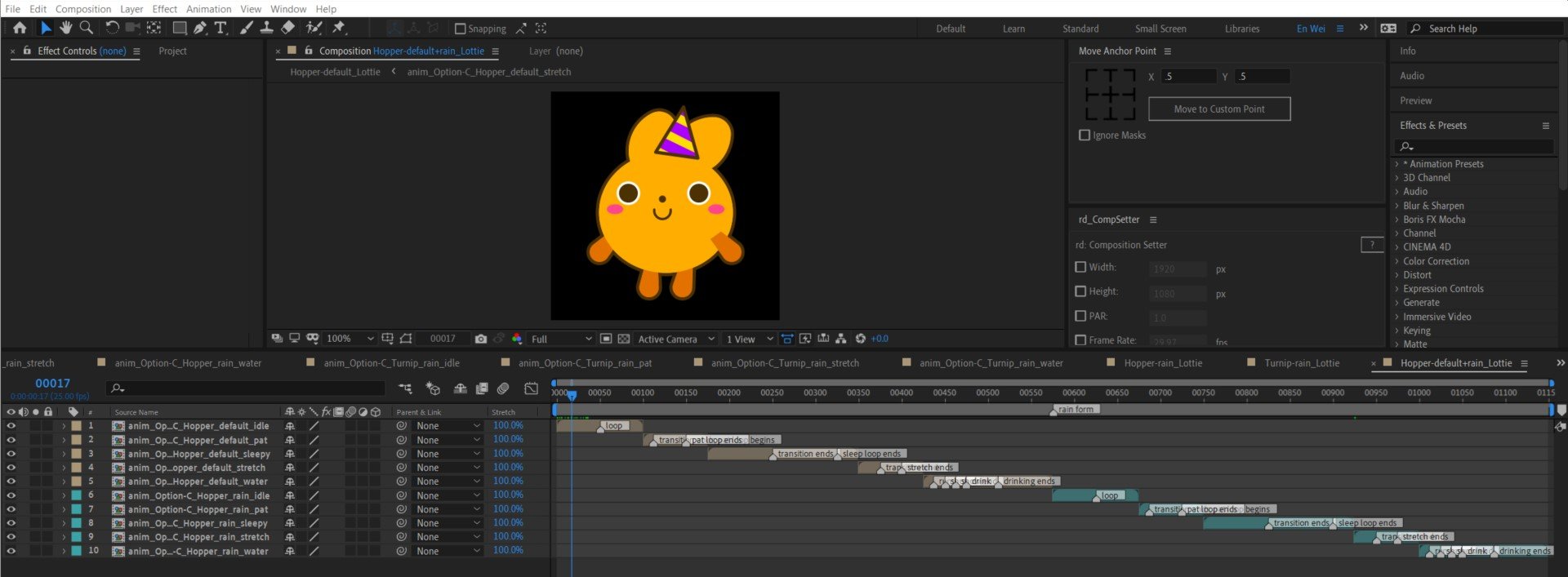
Scratch weatherForm.js and just merge all the both default and rain mode animations into a single Lottie file, and designate the frame ranges accordingly.
With the logic mapped out, it is time to begin developing MiniKin. I will focus on MiniKin’s Hopper form first, as well as the time-based Hydrate and Stretch feature in the following sections.
Translating Animations into Code
Exporting Animations into Lottie Files
Within my Adobe After Effects working file, I compiled of all Hopper animations into a single composition and exporting into single Lottie .json file to import into Visual Studio Code.
Assigning Modes and Segments
After I exported the lottie animations, I moved to Visual Studio Code, where I created the characters folder to put the animation in and created the stateMachine.js, and within it, created the stateMachine function, defining the Lottie’s animation frame ranges within it.
Wiring Assigned Segments to their intended Behaviors
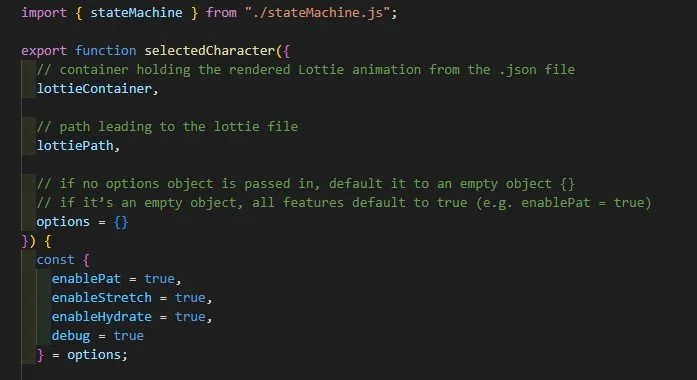
Once that is done, I created the character.js file and imported the stateMachine function from stateMachine.js into it.
It contains the selectedCharacter function. I named it as such for preparation of implementing the Groovy and Turnip characters in the future.
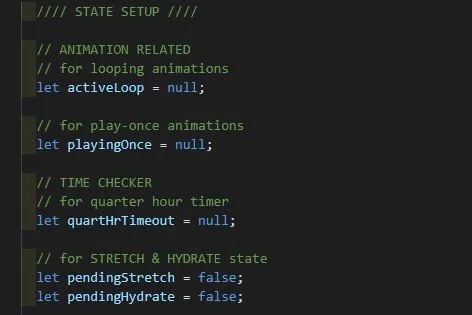
After that, I proceeded to assign variables to their default states.
quartHrTimeout came later during my coding process when implementing the quarter hour timer.
pendingStretch and pendingHydrate variables also came later when queueing the stretch and hydrate actions, which was an unexpected challenge (More on that later).
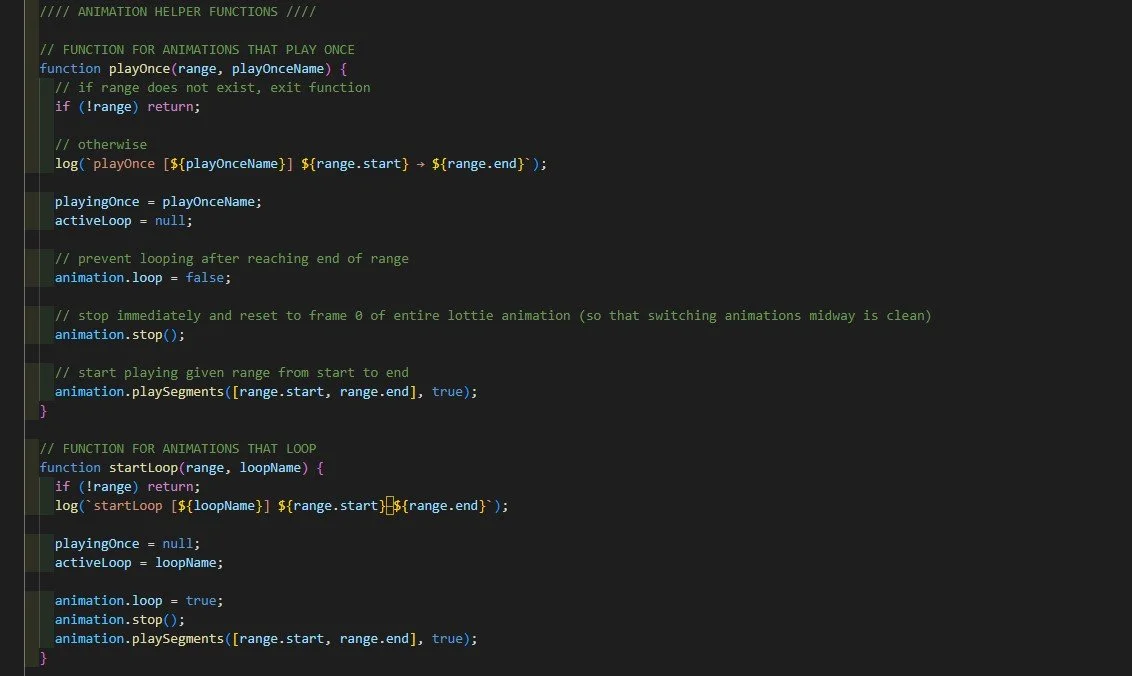
I wanted to create helper functions for the animations to streamline my workflow.
playOnce() is the function for animations that play once. startLoop() is the function for animations that loop.
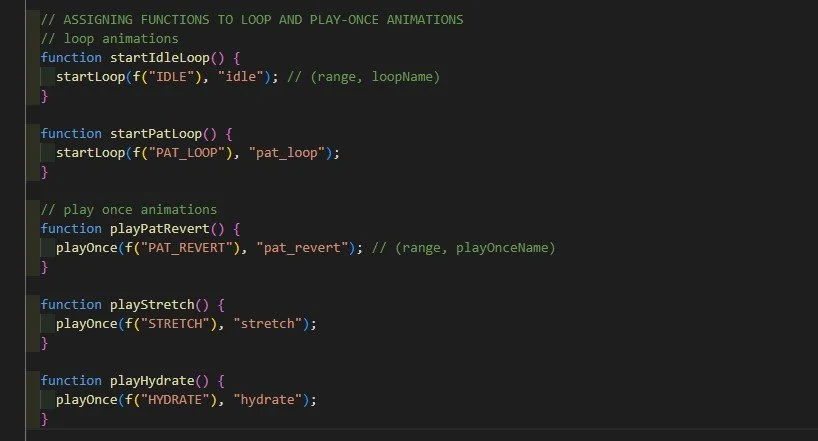
I applied the helper functions when assigning functions to each animation.
Hydrate and Stretch Feature
Aligning MiniKin to the System Clock
I needed to get MiniKin to hydrate at exactly :00, :15, :30 and :45 and stretch at :00, :30 on the system clock. I thought about applying setInterval() to trigger the animations every 15 minutes, as follows:
setInterval(playHydrate, 15 * 60 * 1000);
But I realized that it will do so from the time of startup, and hence it would not align with the system clock if MiniKin was started up at a time that is not at a 15 minute mark (e.g. if MiniKin is started up 08:57, he will hydrate at 09:12).
To address this problem, I needed a create a function that would help ensure that MiniKin runs on real-world time , and not app-relative time. This function is msUntilNextQuartHr(). It calculates the time remaining in milliseconds until the next quarter hour on the system clock.
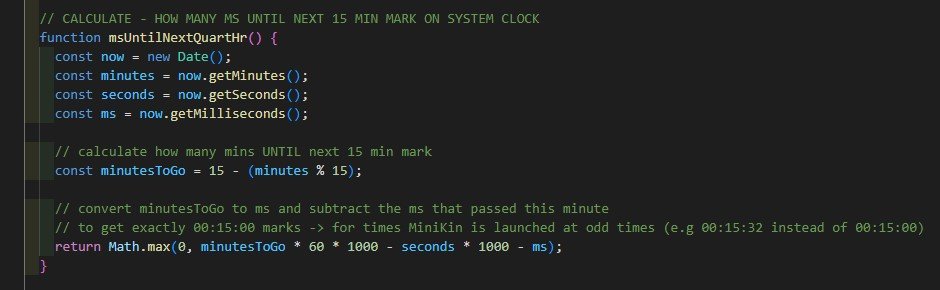
This function will later be implemented into another function I named startQuartHrSchedule to act as a countdown towards the next quarter hour tick for MiniKin to hydrate or stretch.
Queue Hydrate and Stretch Animations at :00 and :30 Ticks
Another problem that I encountered while coding was that it dawned on me that the stretch and hydrate animations would both be triggered at :00 and :30 ticks. I do not want them to overwrite each other, I need to queue and dispatch them one at a time when those ticks happen.
To do that, I need to first set up a queueing system by making a queueSegment function. I want the stretch animation to play first before the hydrate animation, so I listed it first in the function before hydrate.

After that is done, I need to set up the dispatcher by making the tryDispatch function. Once all the rules I set are met, the stretch and/or hydrate animations will play.
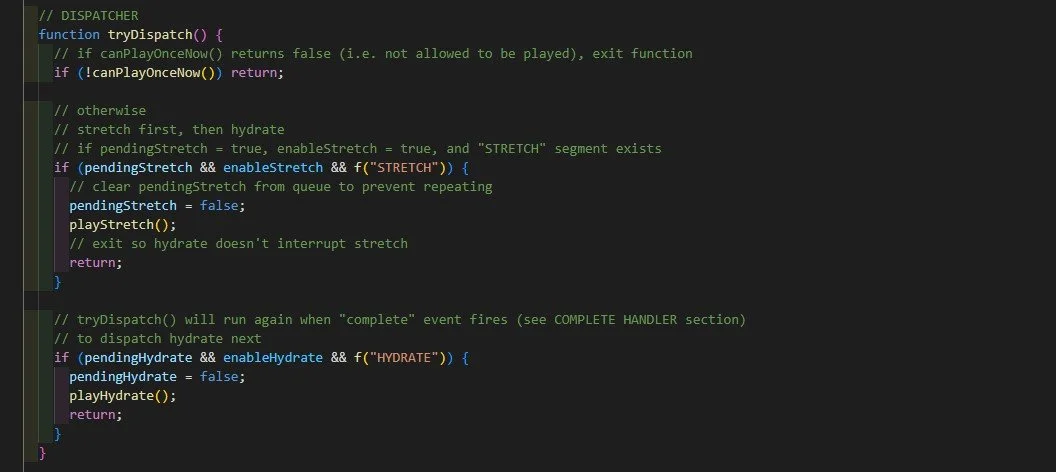
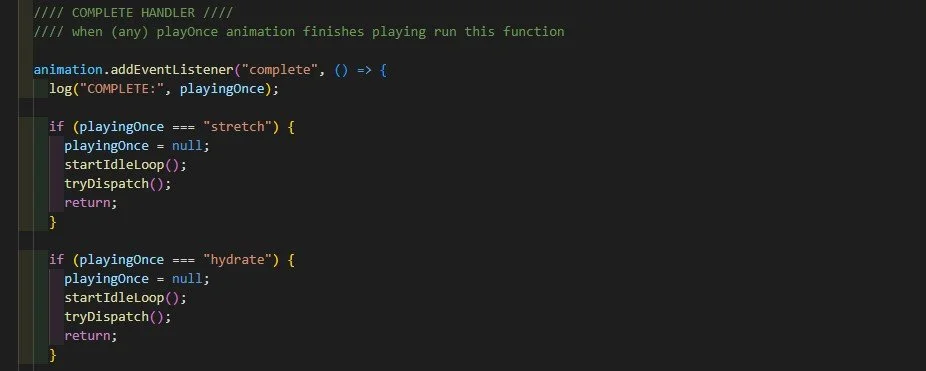
The reason why I added ‘return’ after the end of both stretch and hydration is so that hydrate animation will ‘wait’ for the stretch animation to finish before it plays.
How it’s done is through adding the “complete” event listener. When stretching animation completes, the tryDispatch function will run again, and if it sees that the hydrate animation is still in the queue, play it.
Testing the Code
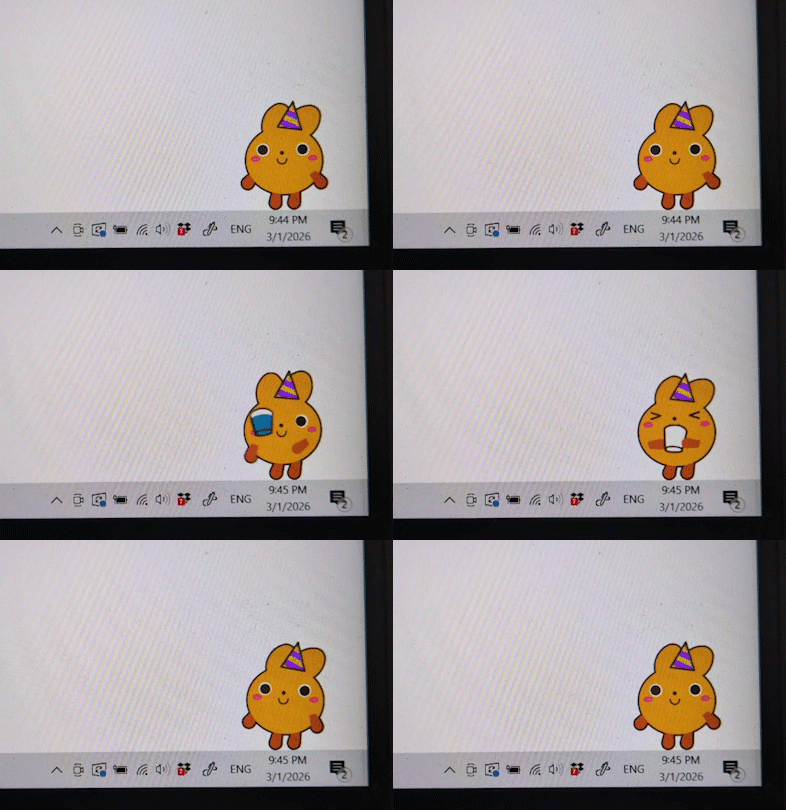
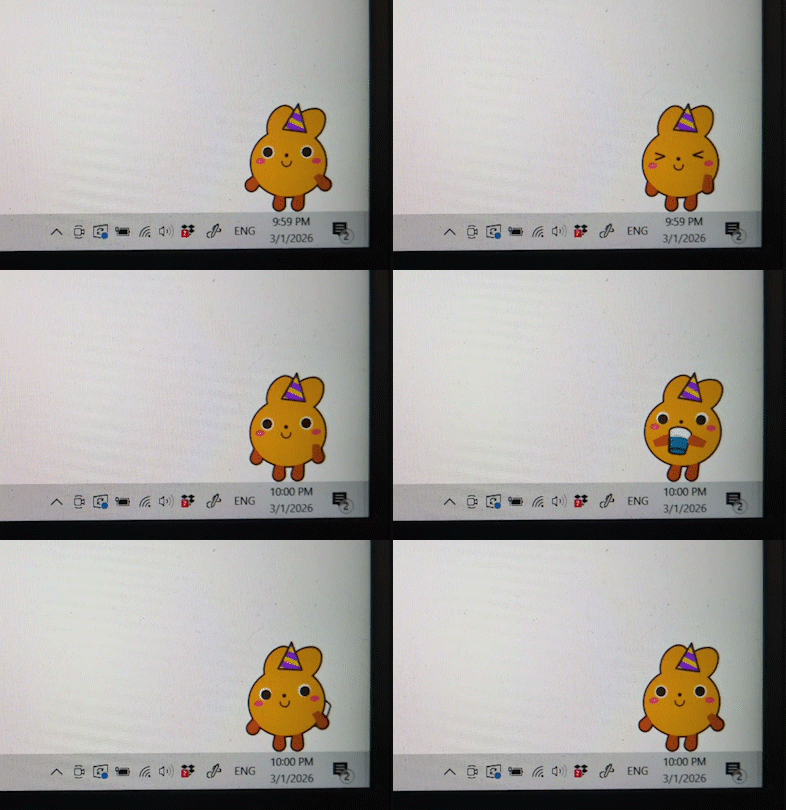
I ran the code on my PC’s desktop, and I am happy to report that MiniKin’s hydrate and stretch time-based features are working as intended!
When the system clock reads :15 and :45, MiniKin will hydrate. And when it reads :00 and :30, MiniKin will stretch and hydrate.